Command Window
The Command Window is a panel of buttons for dealing with other players: trade, buy, party, request to join, whisper, add friend, follow and duel. You pick a button, then right-click the player it is for. It also holds the Global Chat, Wiki and Look up buttons.
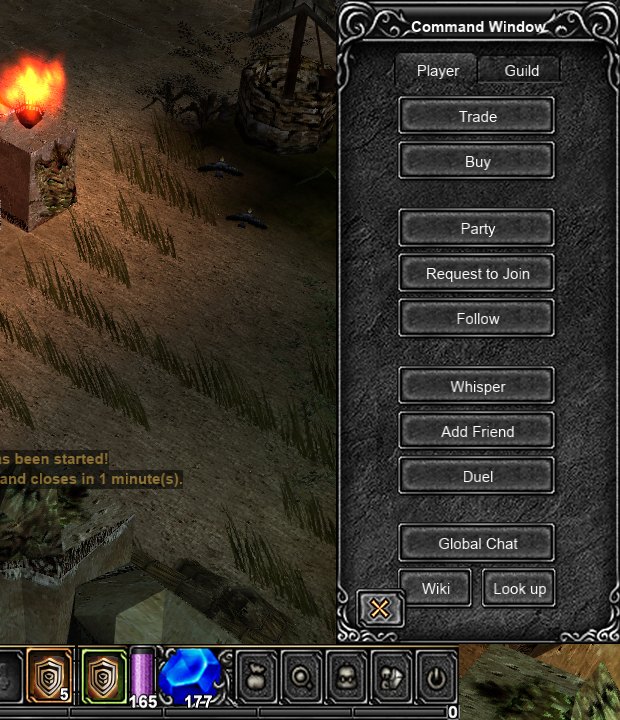
Quick facts
| Thing | Value |
|---|---|
| Open or close | D |
| Phones and tablets | Menu on the bar, Command Window row |
| Tabs | Player, Guild |
| Target | A living player within 2 tiles |
| Trade | Level 6 |
| Duel | Level 30 |
| Global Chat | Level 10 |
| Not usable in | Chaos Castle |
Opening and closing
- Press D to open the window on the right side of the screen. Press D again, Esc, or the close button at the bottom to close it.
- D does nothing while you type in the chat line or an NPC window, while the system menu is open, or in Chaos Castle.
- Phones have no D key. Open the bar menu and choose the Command Window row. A tap on a player also opens a smaller player menu with Trade, Party, Whisper, Guild, Add Friend, Follow and Duel. It has no Buy or Request to Join.
- Closing the window cancels a button you have picked.
Using a button
- Click a button. It stays pressed and the pointer changes to a target cursor.
- Move the pointer over a player. Their name appears beside it, white when they are close enough and red when they are not.
- Right-click the player. On a touch screen, tap them.
- Any right-click cancels the pick, whether or not it hit a player.
The target must be another living player within 2 tiles of you, except from the phone's player menu, below. If nobody valid is under the pointer, the command is dropped without a message. Some buttons refuse with a line in the chat when you or the target do not meet a rule. The sections below list those rules.
Follow only works on party members and stops by itself when you do something else.
From the phone's player menu, a player farther than 2 tiles is walked to first, then the command runs on arrival. If they are more than 10 tiles away or out of sight, the game says "Too far away."
Player tab
| Button | What it does | Who it targets | Rule |
|---|---|---|---|
| Trade | Asks to open a trade window. | Any player | Level 6 |
| Buy | Opens the player's personal store. | A player with a store open | None |
| Party | Invites the player to your party. | Any player | Only the party leader can invite |
| Request to Join | Asks the player's party to take you in. | A member of a party | You must not be in a party. The party must accept requests |
| Follow | Walks after the player. | A member of your party | Party members only |
| Whisper | Opens a whisper to the player. | Any player | None |
| Add Friend | Sends a friend request. | Any player | None |
| Duel | Challenges the player to a duel. | Any player | Level 30 |
The buttons come in three groups: trade, party, and the social ones. Global Chat, Wiki and Look up sit below them.
- Request to Join: the party's leader gets a box saying who wants to join and answers yes or no. The leader's party must have join requests switched on in the Party Rules window (below). The party level gap still applies: you cannot join if your level is more than 130 away from the highest or lowest level in the party (see Party and PK).
- Follow: you walk to the player and stop beside them, checking again twice a second while they stay in view. It ends when you click the ground, attack, pick something up, talk to an NPC, change map, use the phone stick, or lose sight of them.
- Duel: needs level 30 on your side. Below that the chat shows the level needed.
- Whisper: opens a whisper thread with that name in the chat window.
Global Chat
Global Chat shows or hides the chat window with its channels for the whole server. It opens at level 10. Below that the button is grey and reads "Global Chat (lvl 10)", and a post is refused with "Global chat opens at level 10." Y opens the same window. See Commands and keys for /post.
Wiki and Look up
- Wiki opens this wiki in your browser. Where the browser cannot open it, the link appears in the chat window as a line you can copy.
- Look up turns the pointer into an eye. Click an item in your bag, an item on the ground, a monster or an NPC to open its page. Esc or a right-click stops it.
Both are covered in The wiki in the game.
Guild tab
These buttons work the same way: pick one, then right-click a player within 2 tiles.
| Button | What it does | Rule |
|---|---|---|
| Guild | Asks the player to join your guild. | The player must be a guild master. You must not be in a guild |
| Alliance | Asks the player's guild to form an alliance with yours. | You and the player must both be guild masters |
| Rival | Declares the player's guild your rival. | You and the player must both be guild masters |
| End Rival | Ends the rivalry. | You and the player must both be guild masters |
The refusal lines say which condition failed. Guild refuses when you are already in a guild or the player is not a guild master. Alliance, Rival and End Rival refuse when you are not a guild master or the player is not.
Party Rules
The party window (P) has a Rules button that opens the Party Rules window beside it. Every member can read it. Only the party leader can change it.
| Rule | Choices | Default |
|---|---|---|
| Zen | Shared equally, or Picker keeps | Picker keeps |
| Join requests | On or Off | Off |
- Zen shared equally: when someone picks up a pile of zen, it is split between that member and the other members on the same map, outside the safe zone. With Picker keeps, the one who picks it up gets all of it. A Golden Cowbell's pile always stays with its owner.
- Join requests: when On, players can use Request to Join on any member. The leader gets the join box.
- Make leader: the leader clicks a member's name to hand the party over. The new leader moves to the top of the list, and their name shows in green.
The rules reset each time a new party forms. Every change is announced to the whole party in a blue "[Party]" line. A member who joins hears the current rules.
Compared with the original
The original Command Window was a single list of buttons. This one splits them into a Player tab and a Guild tab, so the guild commands are kept apart from the player ones. It adds Request to Join, Global Chat, Wiki and Look up, and the Party Rules window with leader hand-over.
See also The Moo Helper, whose Follow party leader setting follows the party leader named here.