 Moo Classic Wiki
The wiki in the game
Global Chat is described under Command Window.
Monster level. The bar at the top of the screen, for the monster under your pointer or the one you fight, shows its level after its name ("Chief Skeleton Archer · Lv 87"), so the Blood Castle tiers of one name can be told apart.
Quick facts
| Tool | Cost | Status |
|---|---|---|
| Wiki | Free | Live |
| Look up | Free | Live |
Wiki button
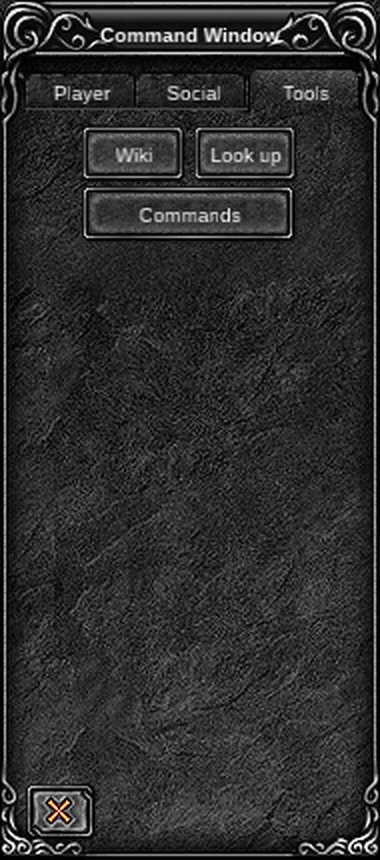
- Press D to open the Command Window.
- Open the Tools tab and click Wiki.
The wiki opens in your browser at its front page. The link is also printed in blue in the chat, so you can copy it if the browser does not open.
Look up
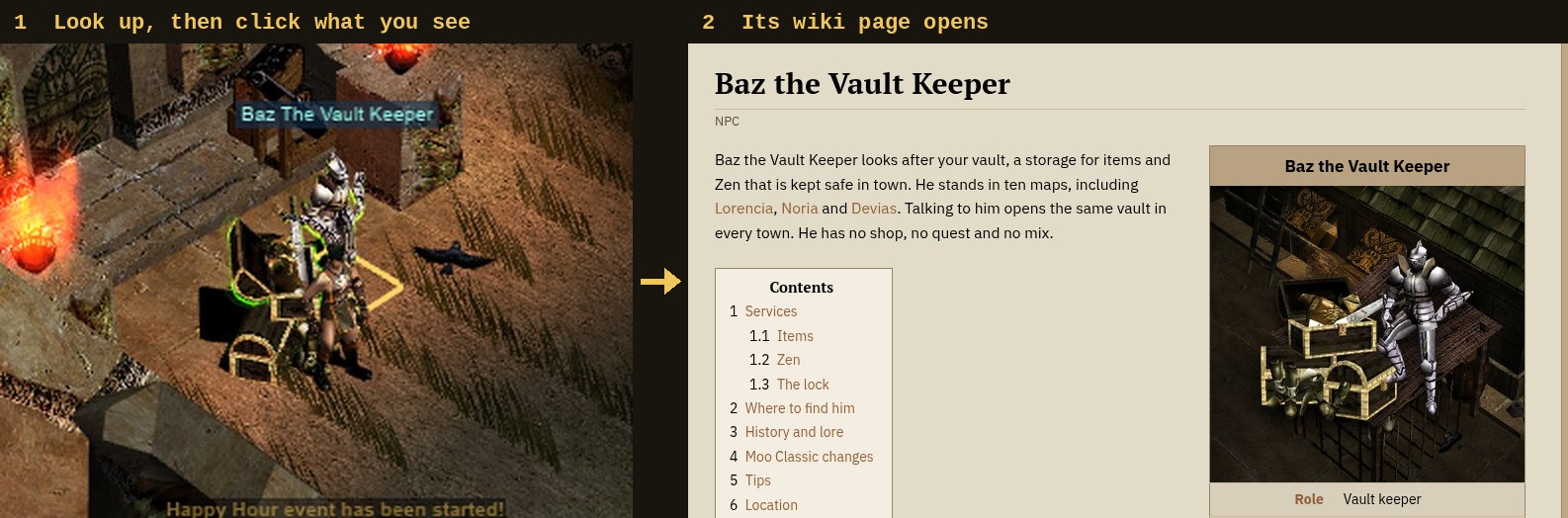
Look up opens the page of whatever you click in the world.
- In the Command Window, click Look up. It sits beside the Wiki button. The pointer becomes an eye, and the chat says "Click an item, monster or NPC to look it up in the wiki."
- Move the pointer over the world. A square lies on the floor under the pointer and follows it.
- Click the thing you want. Its page opens in your browser.
The square
| Colour | Meaning |
|---|---|
| Dim white | An empty tile. A click does nothing. |
| Gold | A monster, an NPC or an item on the ground that has a page. Its name is shown above it. |
| Grey | Something with no page, such as a player or an item from a later season. The label reads "no wiki page". |
A monster or NPC with a page gets the game's usual outline and name box. An item on the ground glows.
What you can look up
| Thing | Note |
|---|---|
| An item in your bag, worn or in a shop | Its cells are outlined when it has a page. Moo Gold shop pictures too |
| An item on the ground | It glows |
| A monster or an NPC | Outline and name box |
| A skill or a buff on your bar | Opens the skill's page, or the shop item behind a buff |
| The life, mana and AG gauges, the experience strip | Opens what the bar means |
| A line of the character window | Opens what that stat does |
| A warp gate | A tile within two of a gate opens the page of the map it leads to |
Look up on your own screen too. It works on your party window and its members, the party rules, every Command Window button, your zen, a personal store, repair and potions.
On another player it opens their Player card: name, class and guild, with Player wiki, Commend, the Command Window's commands for that player and Report at the bottom. A summon opens its own page.
Stopping
A click on an empty tile does nothing, and Look up stays on. Press Esc or right-click to stop it.
| Action | Result |
|---|---|
| Click an empty tile | Nothing. Look up stays on. |
| Esc or right-click | Look up stops |
Sidebar
A slim strip of icons at the top right of the screen opens two small windows: the Hunting Tracker and Target Info. They show your own progress and your target's health. There are no event timers: events in Moo Classic come at random.
| Way in | What it does |
|---|---|
| Click an icon on the strip | Opens that window. Click the lit icon again to close it |
| O key | Shows or hides the Hunting Tracker |
| Command Window (D), Tools tab | Hunting Tracker and Target Info buttons. On a phone this is the way in: phones have no strip |
Each window moves: drag it by its title bar. It opens where you left it, also after the next login. Until you move it, a window stands beside the strip, under your party's cards; in a big party it steps left of the cards instead, so it never reaches the skill bar.
The strip moves too: drag it anywhere. Dropped near an edge of the screen it snaps flush against it, and along the top or the bottom it lies flat as a row. A window you have not moved opens beside the strip.
Drag the strip back to the top right and it returns to its usual place there, where it steps aside for your inventory and the party list. Neither the strip nor its windows push the party list aside.
Hunting Tracker
Your own progress since you logged in, or since you last pressed Reset: experience, damage and zen.
| Row | Meaning |
|---|---|
| Session | Time since login or Reset |
| EXP gained, EXP / hour | Experience earned, and that pace over an hour |
| Kills | Monsters killed for experience, yours and your party's |
| To next level | Experience still needed, with a bar of the level done |
| Time to level, Kills to level | Estimates at today's pace |
| Damage dealt | All the damage your hits did, misses count as 0 |
| DPS | Damage a second over the last 10 seconds of the fight now, or at the end of your last fight once it ended. A fight ends 5 seconds after your last hit |
| DPS average | Damage a second over all your fights, the walking between them left out |
| Zen looted, Zen / hour | Zen you picked up from the ground, and that pace over an hour. Sales and trades don't count |
Target Info
Click its icon on the strip, or its button on the Tools tab.
| Shown | Note |
|---|---|
| Name and level | The monster you fight, else the one under the pointer |
| Health bar and percent | Full until someone hits it |
| Health as a number | "1,240 of 3,100 HP" for every Season 0 to 2 monster |
Compared with the original
| Change | What now happens |
|---|---|
| Wiki button | Free. On the Tools tab of the Command Window, it opens the Moo Classic wiki in the browser. |
| Look up | Free. The pointer becomes an eye and a square follows it on the floor: dim on an empty tile, gold on anything with a page, grey on something without. A click on a bag item, a ground item, a monster or an NPC opens its page. |
| Your character on the wiki | The pages the game opens fill in your character, once you share it on the wiki's privacy page. Options > Game > Wiki privacy settings opens that page. |
Changes in Moo Classic
The wiki tools are new in Moo Classic. Here is how each one differs from the original game and why.
| Topic | Original | Moo Classic | Why |
|---|---|---|---|
| Wiki button | No help link in the game. Help was on the official web site. | A Wiki button on the Tools tab of the Command Window opens the wiki in your browser. | Help is one click away without leaving the game. |
| Sidebar | Nothing like it. | A strip of icons you can put on any edge opens a Hunting Tracker (experience, DPS and zen) and an opt-in Target Info, both movable. | You see your own pace while you play, without leaving the game. |
| Look up (N key) | Only the item help window existed. Nothing opened a monster or NPC page. | Look up turns the pointer into an eye. A square on the floor shows what has a wiki page. Click an item, monster or NPC to open its page. Press N or click Look up to start. | You can find out what anything on screen is, and see at a glance what has a page. |
| /ask | Not in the original game. | Type /ask with a question to get an answer from the wiki, in your language, as a few chat lines with a page link. It costs 10,000 zen, which is refunded when no answer comes. | Questions get a direct answer in chat. The zen cost keeps it from being spammed. |