 Moo Classic Wiki
Options
Quick facts
| Setting | Value |
|---|---|
| Open | Esc, then Option |
| Close | The Close button, or Esc |
| Tabs | Computer: Game, Display, Sound. Phone or tablet: Game, Display, Chat, Sound |
| Sound bars on a computer | Master, Music, Sound effects, Area sound: percent, from 0 to 100 |
| Sound bars on a phone or tablet | Volume and Music Volume: 10 steps each |
| Sound at first start | Computer: Master at 100 %, the other bars at 0. Phone or tablet: both bars at 0. Browser: every bar at 50 % |
| Frame rate | 30, 60 or 120 on a computer, 30 or 60 on a phone |
| Mana potions | Auto mana potion: on at 30 % (called Drink mana potions on a phone) |
| 3D resolution | 100, 50 or 75 % |
Rows
| Row | Devices | Default | What it does |
|---|---|---|---|
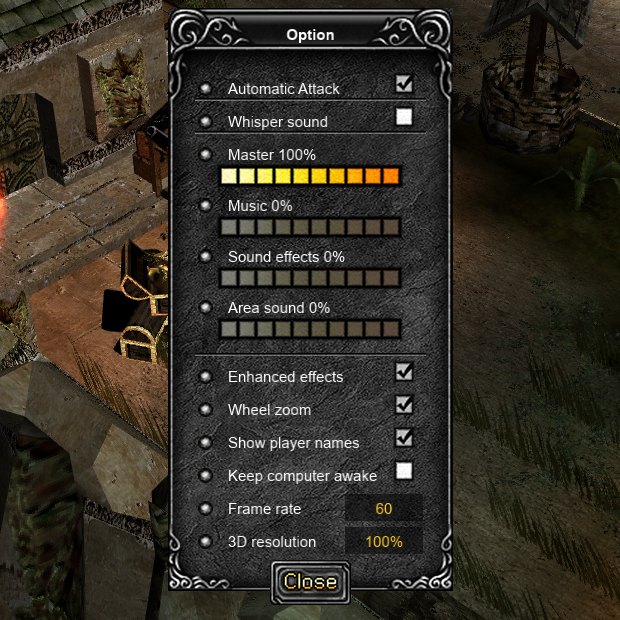
| Automatic Attack | All | On | Keeps the hero attacking the target after one click. Off, each click is one swing. See Commands and keys. |
| Auto mana potion | All (Drink mana potions on a phone) | On, at 30 % | Drinks a mana potion from your bag when your mana falls under the level you pick, or Off. On a computer the levels run 10 % to 70 %; on a phone Off, 20 %, 30 % or 50 %. Hunting by hand uses it. A spell short of mana drinks one too, and casts once the mana is in. The Moo Helper keeps its own level. |
| Whisper sound | All | Off | Plays a sound when a whisper arrives. |
| Global chat | Phones and tablets | Upright on a phone, Split screen on a tablet | How the Global Chat window opens. On a phone, Upright turns the phone upright, with the game on top and the chat below, and Panel is a tall window over the left of the game. On a tablet, Split screen is a column the game fits beside, or Panel. Click the row to change it. |
| Enhanced effects | All | On for a computer, off for a phone or tablet | Adds sky and weather effects: northern lights, rain, thunder and sandstorms. Off, the sky and weather look as they did in the original game. |
| Wheel zoom | Computers and the browser | On | Scrolling the mouse wheel zooms the view out and back in. In the Arena it zooms out further. |
| Tap inspects | Phones and tablets, in the same row slot as Wheel zoom | Off | On a touch screen, a tap selects a monster or item and the buttons act on it. Off, a tap clicks, and a finger held still reads its tooltip. |
| Show player names | All | On | A player's name shows over their head. Off, the name shows only when the pointer is on the player. |
| Keep computer awake | Computers only | On | Keeps the computer from going to sleep while the game runs. The screen may still switch off. |
| Wiki privacy | Computers, phones and tablets | A button, Open | Opens the wiki's privacy page in your browser. There you choose what other players can see of each character. On a phone the row is called Wiki privacy settings. |
| Send anonymous usage stats | All | On | Sends how long you play on this device, and a crash or freeze report when one happens. It never says who you are. Off, the game sends nothing on its own. |
| Frame rate | All | 60 on a computer or an iPad, 30 on a phone | The most frames per second the game draws. A lower rate keeps a phone or laptop cooler. |
| 3D resolution | All | 100 % on a computer or an iPad, 75 % on an iPhone, 50 % on an Android phone | The share of the screen size at which the 3D world is drawn. The interface stays sharp. A lower value runs faster. |
| Don't download sound | The browser | Not ticked, sounds at 50 % | Ticked, no sound or music is downloaded or played. Click to turn it back on, with each sound at half volume. |
| Download sounds | Phones and tablets | On once sound is on | A switch on the Sound tab. On, sounds and music are downloaded and play. Off, they are not downloaded, the downloaded ones are deleted and both bars go to 0. On again, both bars return to the halfway step. |
| Sound bars | See below | See Sound | Set the volume of sounds and music. |
| Close | All | - | Closes the window. |
Wheel zoom and Tap inspects share one row slot. A computer shows Wheel zoom and a touch screen shows Tap inspects.
Frame rate and 3D resolution
Click the value to step through the choices, then back to the first. The game never draws more frames per second than the chosen number, on any device.
On a phone or tablet each choice is a button in the row (30 | 60, 50 % | 75 % | 100 %): tap the one you want, no stepping. A tablet also has 120.
| Row | Steps through | Effect |
|---|---|---|
| Frame rate | 30, 60, 120 on a computer; 30, 60 on a phone | A lower rate keeps a phone or laptop cooler |
| 3D resolution | 100 %, 50 %, 75 %, then 100 % again | The world is drawn at that share of the screen size and stretched to fit. A higher value is sharper and uses more power |
Menus, windows and text stay sharp at any 3D resolution.
Sound
The sound bars sit under the other rows. Drag a bar, or click on it, to set it.
On a computer
| Bar | Controls |
|---|---|
| Master | All the sound together. At 0 nothing plays. |
| Music | The background music of the towns and maps. |
| Sound effects | Your hero's sounds, the fighting and the interface. |
| Area sound | Other players' and monsters' sounds, and the ambient sounds of the world. |
- Drag a bar, or click on it, to set it to any percent.
- The mouse wheel over a bar moves it 5 % a notch. Hold Shift for 1 % a notch.
- The bars are not linear: a bar at 50 % sounds clearly quieter than half of full volume. Master and a second bar multiply, so both at 50 % is quieter again.
- At first start Master is at 100 % and every other bar is at 0.
On a phone or tablet
On a phone or tablet the Option window has four tabs along the top: Game, Display, Chat and Sound. It opens on Game. Tap anywhere on a row to use it: a switch flips, a segmented choice takes the part you tap.
| Tab | Rows |
|---|---|
| Game | Automatic attack, Auto mana potion (Drink mana potions), Tap inspects (a tap buys or picks up, a hold reads), Show player names, Wiki privacy settings, Send anonymous usage stats |
| Display | iPad layout or Tablet layout (on a tablet only), Quality, Enhanced effects, Frame rate, 3D resolution, Window layout (Original or Optimized) |
| Chat | Global chat (Upright or Panel on a phone, Panel or Split screen on a tablet), Whisper sound |
| Sound | Volume, Music, Download sounds |
Quality sets Enhanced effects, Frame rate and 3D resolution together, for anyone who does not know what 3D resolution means.
| Quality | Enhanced effects | Frame rate | 3D resolution |
|---|---|---|---|
| Saver | Off | 30 | 50 % |
| Balanced | Off | 60 (30 on a low-end Android) | 75 % |
| Best | On | 60 (120 on a tablet) | 100 % |
Change Enhanced effects, Frame rate or 3D resolution by hand and no Quality button stays lit: your own mix.
| Bar | Controls |
|---|---|
| Volume | Sound effects and Area sound together. |
| Music Volume | The background music. |
- Each bar has 10 steps. Drag along it, or tap it.
- At first start both are at 0.
- Download sounds is a switch. On, sounds and music are downloaded and play. Off, both bars go to 0 and the downloaded sounds are deleted (about 100 MB). Switch it on again and both bars return to 50 %.
In the browser
In the browser, sound starts on at 50 %. The browser has the 4 computer bars and the Don't download sound row.
Don't download sound
On a phone and in the browser, sounds and music are downloaded when needed, which keeps the first download small.
| You do | What happens |
|---|---|
| Tick Don't download sound | Every sound goes to 0 and the downloads stop |
| Click it again | Every sound comes back on at half volume: 50 % in the browser, the halfway step (5 of 10) on a phone |
Device differences
| Setting | Computer | Phone or tablet | Browser |
|---|---|---|---|
| Sound bars | Master, Music, Sound effects and Area sound (percent) | Volume and Music Volume (10 steps) | Master, Music, Sound effects and Area sound (percent) |
| Wheel zoom | Yes | - | Yes |
| Tap inspects | - | Yes | - |
| Don't download sound | - | - | Yes |
| Download sounds | - | Yes | - |
| Keep computer awake | Yes | - | - |
| Frame rate choices | 30, 60, 120 | 30, 60 | 30, 60, 120 |
The system menu
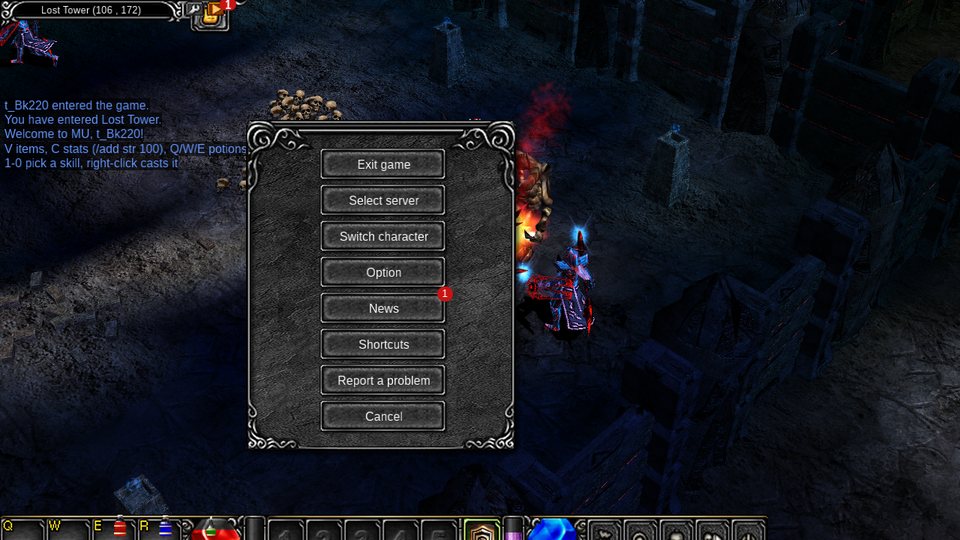
Esc opens the system menu, which has these rows:
| Row | What it does |
|---|---|
| Exit game | Leaves the game after a countdown. A computer quits. On iOS the game returns to the login screen, and on Android the app closes. The countdown lasts 5 seconds. If your hero dies during it, the game waits for the revival, but leaves anyway 12 seconds after you chose the row. |
| Select server | Goes back to the server list. |
| Switch character | Goes back to the character list. |
| Option | Opens this window. |
| Shortcuts | Opens Commands and keys in the game. |
| News | Opens the news window. A red dot on the corner of the row shows how many news items you have not read yet, up to 9, then 9+. On a phone this dot is the only place unread news shows. |
| Report a problem | Opens the problem report, which describes what went wrong and includes a screenshot. See Commands and keys (F12). |
| Cancel | Closes the menu. |
On a phone or tablet the bar's menu list also has a Command Window row and a Party row. See Command Window.
Compared with the original
The original game had a short Options window. Most rows on this page are Moo Classic additions.
| Change | What is different |
|---|---|
| Enhanced effects | The original game had auto attack, a whisper beep and a fixed sky. Moo Classic adds northern lights, rain, thunder and sandstorms. The switch keeps the original look one click away. It is off by default on phones. |
| Four sound bars | The original game had one volume bar and one music bar, with 10 steps each. Moo Classic has 4 sound bars with smooth dragging. The bars are shaped so that equal steps sound equally different, and Master scales all the others. |
| Phone sound bars and Don't download sound | The original game had sound in the install that could not be skipped. Phones have the 2 bars with 10 steps, and sounds download only when needed. Players on slow data can skip sound entirely. |
| Frame rate and 3D resolution | The original game ran about 25 frames per second at 640x480 to 1024x768, with no options. Moo Classic has a frame cap and a 3D resolution row on every device. Computers can choose a sharper or faster picture. Android starts at a lower resolution, and players can raise it. |
| Auto mana potion | The original game had no such switch: you drank every potion yourself. |
| Keep computer awake | The original game had no such option. Moo Classic keeps the computer awake while the game runs. It is on by default. |
| Wheel zoom and Show player names | The original game had a fixed camera with no zoom. Moo Classic has wheel zoom on computers, and names can be hidden. |
| Tap inspects | The original game had no phone version. Tap inspects is off by default. A tap clicks, and a finger held still reads a tooltip. Turn it on if you prefer select-then-act on a touch screen. |
| News and Report a problem in the system menu | The original game had Exit, Server, Character and Option only. News opens from the system menu. Report a problem sends a screenshot, text and the end of the game log. A crash reports itself. An anonymous device line (system, model, graphics card and frame rate) is sent once per session. |
Language
| Setting | What you see |
|---|---|
| Menus, windows and messages | English for now. They are ready to be translated, and a line a translation leaves out shows in English. |
| Server messages | /language <code> changes them, for example /language de. See Commands and keys. |
Tips
- If the game is silent, raise a bar. A new computer install starts with only Master up.
- If a phone runs hot or the battery drains, lower the frame rate to 30 and the 3D resolution to 50 %.
- On a computer where the picture is slow, try 3D resolution 75 % or 50 %. The interface stays sharp.
- Turn Enhanced effects off to see the original sky and save power.
- To stay logged in while away, leave Keep computer awake on.
Saved settings
| Where | What to know |
|---|---|
| First start | Automatic Attack is on and Whisper sound is off |
| Storage | On the device, or in the browser's own storage. Clearing the browser's site data resets them |
| Frame rate and 3D resolution | They keep your choice. If an older version picked one for you, it is reset once to today's default |