 Moo Classic Wiki
MU Online on Android, iPhone and iPad
Moo Classic runs on any device. On Android you install an app file from the website, and on iPhone and iPad you play in Safari with nothing to install.
The closed beta is on now, for members of our Discord. The download page opens for accounts in the beta. Pre-register on mooclassic.com, then press Get beta access in #beta-access on our Discord. The Grand Opening is on 1 December 2026. See Pre-registration and invites.
Pick the version for your device
| Your device | How you play | How you get it | Updates |
|---|---|---|---|
| Android phone or tablet | The Moo Classic app | An app file (APK) from the download page | The app installs its own updates |
| iPhone or iPad | Safari, with the game on your Home Screen | Open the download page in Safari and press Play now | A banner shows when a new version is ready |
| Any other device | The browser: Chrome, Edge, Firefox or Safari | Open the download page and press Play in the browser. Nothing to install | The same banner |
Computers have their own downloads. See Apps and updates.
Android: an app file from the website
Moo Classic is not on Google Play. You download the app file from the download page and install it. The 64-bit file suits Android 8.0 and newer. An older phone takes the 32-bit file.
iPhone and iPad: play in Safari
The App Store app is in testing, so Safari is the way in for now. The game then opens full screen from your Home Screen, like an app.
Hold the phone sideways
The game is built for landscape. The screen turns upright only while Global chat is open, and turns back when you close it.
| Phone | What you see |
|---|---|
| Sideways | The game, with its buttons, bar and windows |
| Upright, with Global chat open | The game on top and the chat below it |
What the touch controls look like
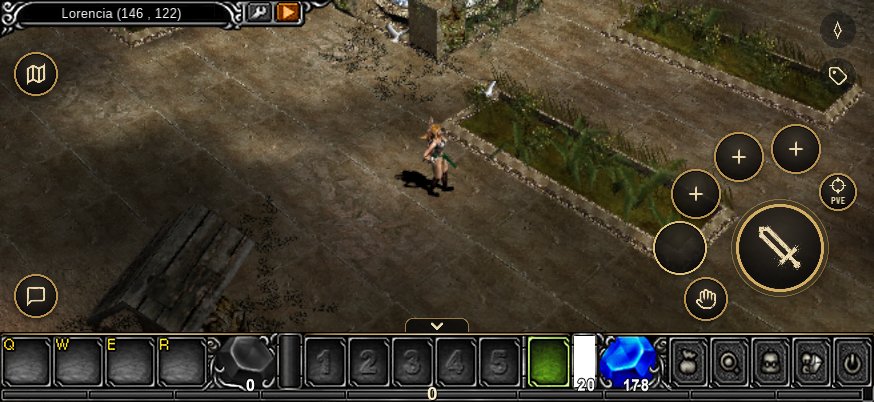
The big button on the right attacks, or casts the skill you picked. Three round quick slots sit above it. Tap the ground to walk, and tap a monster to attack it. The full list of buttons, the skill bar and the side slots is in Playing on any device.
One account on every device
Log in with the same account name and password everywhere. The account and its characters are the same on every device.
| Same on every device | Set on each device |
|---|---|
| Your account and its characters | Options: sound, frame rate, 3D resolution and controls |
| The news you have read, saved per account | The sound files you downloaded |
Options are saved on each device, so set them up on each one.
Battery and data
These are the starting settings on a phone. Change any of them in Options.
| Setting | Default on a phone | Effect |
|---|---|---|
| Frame rate | 30 frames a second on a phone, 60 on an iPad | 30 runs cooler. 60 is smoother |
| 3D resolution | 75 % on an iPhone, 50 % on an Android phone, 100 % on an iPad | A lower share draws the world with fewer pixels. Buttons and text stay sharp |
| Enhanced effects | Off on a phone or tablet | Off saves power. On adds northern lights, rain, thunder and sandstorms |
- The screen stays awake while the game is open.
- The app carries a starter pack: the towns of Lorencia and Noria. The other maps, the sounds and the music download while you play.
- Phones start with the sound bars at zero and no sound files. The Download sounds switch in Options turns them on.
- The download page shows each file's size.
Where to go next
| You want to | Read |
|---|---|
| Join the open beta | Pre-registration and invites |
| Make your first character and start hunting | Getting started |
| Learn the touch buttons, the bar and the side slots | Playing on any device |
| Know which version to install, and how it updates | Apps and updates |
| Set sound, frame rate and 3D resolution | Options |
| Let the Moo Helper hunt for you, from level 20 | Moo Helper |