 Moo Classic Wiki
Party, PK and commands
One idea sits behind most of the changes: Moo Classic rewards active play. Players who group up, talk and trade should find it easier and clearer than in the original game, so the changes mostly add tools for people who play together.
- 1 Quick facts
- 2 Party
- 2.1 Requirements
- 2.2 Making a party
- 2.3 Experience sharing
- 2.4 Zen and items
- 2.5 Party Rules
- 2.6 Party chat
- 2.7 Party tools
- 2.8 Tips
- 3 PK and outlaw status
- 3.1 Attacking players
- 3.2 Going up
- 3.3 Going down
- 3.4 Kills with no PK step
- 3.5 Tips
- 4 PvP rules from Moo Classic
- 5 Duels and the Arena
- 6 Clearing PK status
- 7 Guilds and alliances
- 8 Trade
- 9 Personal store
- 10 Chat channels
- 10.1 Announcements
- 10.2 Friend chat rooms
- 10.3 Phones
- 10.4 Chat window
- 11 Chat commands
- 11.1 Client commands
- 11.2 Server commands
Quick facts
| Thing | Unit | Value |
|---|---|---|
| Party size | Members | 5 |
| Party share range | Tiles from the kill, under | 10 |
| Level gap allowed in a party | Levels | 130 |
| Trade and personal store | Level needed | 6 |
| Create a guild | Level needed | 100 |
| Alliance size | Guilds | 5 |
| Length of each PK step | Hours | 3 |
| Self-defence window | Seconds | 60 |
| Post to the whole server | Level needed Seconds between posts | 10 |
| Unanswered trade request | Seconds before it ends | 20 |
| Macro | Seconds between lines | 4 |
| PK Clear Scroll | Moo Gold | 100 |
Party
A party shares the experience of every kill. The sections below cover who can join, how to make one and how the shares work.
Requirements
A party holds up to 5 members, and any character can start or join one. A player cannot be invited if their level is more than 130 away from the highest or the lowest level in the party.
If the inviter has no party yet, the check compares the invited player with the inviter's own level. Requests to join pass the same check.
If the inviter has no party yet, the check compares the invited player with the inviter's own level. Requests to join pass the same check.
| You see | Because |
|---|---|
| "The level difference is too big for a party (more than 130)" (blue line) | The invited level is over 130 from the party's highest or lowest |
Making a party
/party or /pt3They press OK4Press P for the window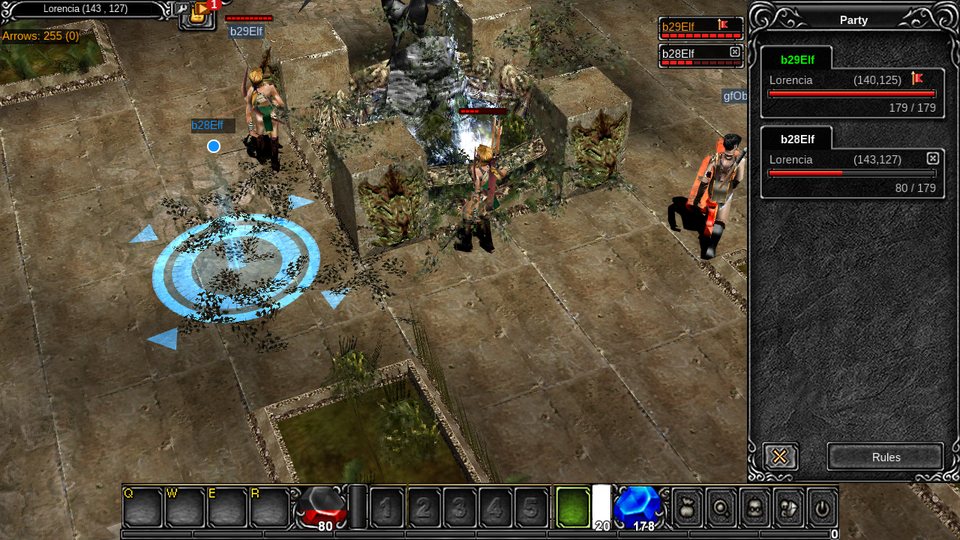
Experience sharing
When a party member kills a monster, the experience is shared. A member other than the killer gets a share only if they are alive, on the same map as the monster and less than 10 tiles from it.
The killer always gets a share. A member who is too far away gets nothing and does not raise the party bonus.
The party bonus is a percentage of the normal experience. The total is split between the members who share, by level.
| Members sharing | Normal party | Party with 1 Dark Wizard, 1 Dark Knight and 1 Elf |
|---|---|---|
| 1 | 100 % | 100 % |
| 2 | 160 % | 100 % |
| 3 | 180 % | 230 % |
| 4 | 200 % | 270 % |
| 5 | 220 % | 300 % |
The mixed-class bonus in the last column needs 1 character from each of the Dark Wizard, Dark Knight and Elf lines. Worked examples: Party EXP.
Zen and items
| What | Rule |
|---|---|
| Zen piles | The player who picks one up keeps all of it. The leader can switch on equal sharing: see Party rules. A pile can be picked up in a safe zone too. |
| Items | They stay with the player who picks them up. The rest of the party sees a [Party] chat line. Strangers never see it. |
| Your own zen | The chat window's System view shows N Zen Obtained for every pile you pick up. |
| Quest items | A quest item that drops in a party goes to the member who needs it. See Class quests. |
| Potions, antidotes, ale and arrows | Anyone can pick up what a player drops, at once. They do not stay locked to the dropper and their party. |
Why: the original game gives the whole pile to the picker, so that stays the default.
A split by experience share made zen depend on who dealt damage rather than who picked it up, so sharing is a choice the leader makes. The pickup line lets a party see its loot, and the zen line in the System view shows your own piles.
Party Rules
Open the Rules button in the P window, or type a command, to set the rules. It works solo too, and the party you form takes your rules. In a party only the leader changes them. The full story is in Party rules.
| Rule | What it does | Commands |
|---|---|---|
| Zen | "To the picker" is the default. "Shared equally" splits a pile picked up outside town between the picker and the members on the same map. A Golden Cowbell pile always stays with its owner. | /partyrules zen shared, /partyrules zen picker |
| Join requests | When on, another player can ask to join. The leader sees "<name> asks to join your party", and the usual OK box adds them. The Auto requests row lets requests in without the box. Solo with requests on, a yes makes you the leader of a new party. | /partyrules join on, /partyrules join off, /partyjoin <name> |
| Hand over the lead | The new leader goes to the top of the list, in green, and everyone is told. If the leader is offline for 30 seconds, the next member online leads. | /partylead <name>, or click a member in the Rules window |
Every change shows to the whole party as a blue [Party] line, and a member who joins hears the rules. Only the leader can change them.
Why: in the original game the party had no settings, the creator stayed leader until leaving, and joining was by invitation only.
Parties differ: some friends share zen and some do not. The rules let each party choose, and the default keeps the original behaviour. A hand-over means a leader who has to log off does not break the party. Join requests let a player ask for a place without waiting to be noticed.
Party chat
Start the line with ~. Only your party sees it, in a light blue box.
~meet at Devias and your party reads it. Nobody else does.Party tools
| Tool | What it does |
|---|---|
| Small party list | A compact list of member cards sits at the top right of the screen, as well as the P window. |
| Health bars | Everyone who has a monster in view sees its health bar update, including after a party member's hit. |
| Ping | Hold Alt and left-click empty ground to send a 4-second ping. A glowing disc in your party colour, shockwaves and a beam of light mark the spot, with your name. On phones a Ping button does it. |
| Live map | Ctrl+click pings. Shift+click sets a pin that lasts 2 minutes and goes when you move or remove it, leave the party or log out. The party sees your pin as an arrow with its distance. See Live map. |
| Follow | The Follow button of the Command Window walks your hero after any player and stops beside them. |
| Moo Helper | It can follow the party leader, or the next member when you lead the party. It keeps following mid-fight and out of sight, and pauses when the leader teleports, warps or dies, or when the party ends. |
| Soul Barrier | The Elf's Soul Barrier lands on the member you pick: click them, pick them in the party list, or in the Moo Helper's Buff party. |
| Phones | Tap a player to open a small menu: Trade, Party, Whisper, Guild, Add Friend, Follow and Duel. |
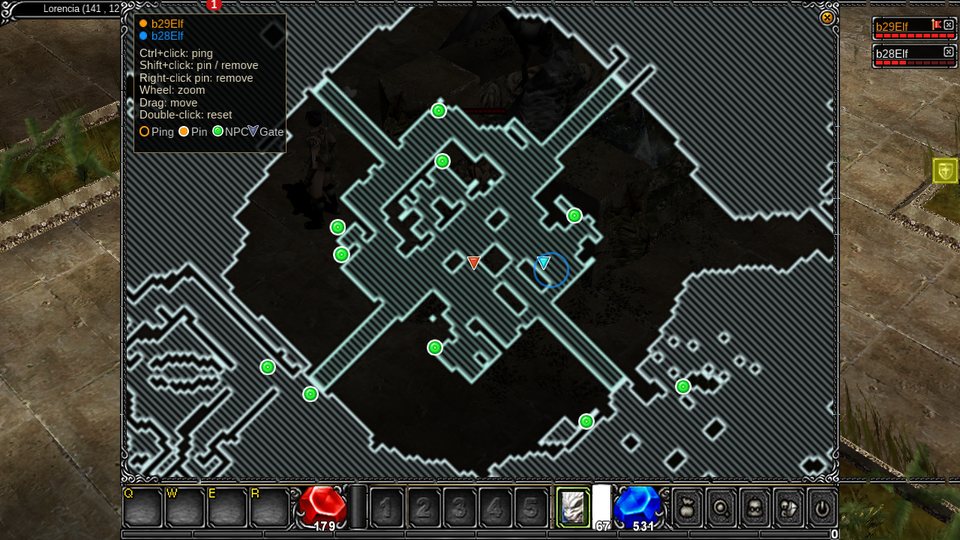
Party members have their own colours on the map: leader gold, then cyan, green, pink and orange. The map zooms and pans, and a legend names the marks.
Follow works on any player you can see, in your party or not. The chat says "Following" and "Stopped following" with their name. Your hero never walks through a gate after them, and Follow ends when you click the ground, attack, pick something up, talk to an NPC, change map or lose sight of them.
An Elf helper heals itself first, then the weakest member. "Buffs on you" go on your hero only, and "Party buffs" go on the other members and the summon only. The Helper pauses while a trade, store, shop, vault or mix window is open.
On phones, for a player more than 2 tiles away your hero walks to them first and the action runs on arrival. Beyond 10 tiles, or out of sight, you see "Too far away."
Why: players could not see their party at a glance, so the small list was added. In the original game only the attacker saw a monster's health change, so a party could not see how close a member's target was to dying.
The original had no ping, so a party could only describe a place in chat; a marker on the spot is quicker and clearer than words, and the effect is bright so that it is not missed in a busy fight.
Follow gives way to every other move, so the hero never gets stuck between two actions. The Elf helper heals itself first because an Elf is often the most fragile member, and the Helper pauses while you deal with another player so it does not act during a trade.
A phone has no right-click and no keyboard for slash commands, so a tap opens the player menu.
Tips
- Stay under 10 tiles from the monster you are fighting, or your party gets no share of that kill.
- Keep a Dark Wizard, a Dark Knight and an Elf in a party of 3 or more for the larger bonus.
- The Dark Lord is available from Season 2.
PK and outlaw status
A PK step is given when you kill another player who is not already an outlaw. Your name colour changes with your step. A Golden Member shows a small crown by the name.
Only the 2 outlaw stages count as outlaws.
Attacking players
A plain click attacks only players who have PK status. Ctrl + click attacks any player outside a safe zone. This is the original rule. Use Ctrl + click with care: a kill can give you a PK step.
Moo Classic the Arena is the exception. There a plain click attacks any player, and nobody becomes a murderer for it. See Duels and the Arena.
Going up
- The first kill gives the Warning step.
- Each later kill raises you one step, up to Outlaw stage 2.
- Every step up sets the timer to at least 3 hours.
- At Outlaw stage 2, each kill adds 3 hours to the timer.
- Every PK kill adds 1 to your kill count.
- A heavy killer waits longer than in the original game, where kills past the third wore off faster. Why: a player who kills many others should stay marked longer than one who killed once.
Going down
- When the timer runs out, you drop one step.
- When you are back at Normal, the kill count returns to 0.
- You can also pay to clear it. See Clearing PK status.
Kills with no PK step
| Kill | Why there is no step |
|---|---|
| An outlaw | Killing a player on Outlaw stage 1 or 2 gives no step. |
| Self-defence | The player you kill hit you in the last 60 seconds, and is at Normal or Warning. A red row "You can hit back <name>: N s" stays over the chat lines, and the System view says who attacked you. The original game shows no countdown and no name, so Moo Classic added both, so that players can see the window they are in before they hit back. |
| A rival guild member | Members of hostile guilds can kill each other with no PK step. See Guilds and alliances. |
Tips
- Check your name colour before you attack. Anyone can kill an outlaw with no PK step.
- Check your own PK status before you walk into a field with other players.
- The System view of the chat window lists
X killed you,You killed XandYour PK status: ....
PvP rules from Moo Classic
Moo Classic changed a few fights between players.
| Change | What it does |
|---|---|
| Coin shop damage scrolls | Scrolls of Wrath and Wizardry add damage only against monsters, never against players or in duels. The Scroll of Defense adds defense against monsters only. |
| Elf summons | A summoned monster fights the player its owner is hitting, while the owner keeps hitting. A pause or a kill ends it. Summons are named after their owner and cannot be attacked as targets. See Summons. |
| Golden Member name | A Golden Member shows a small crown by the name. The name keeps its normal colour. |
| The Arena | Plain clicks hit other players, and nobody becomes a murderer or loses anything. The stands and an open hunting pen stay safe. |
Duels and the Arena
Duels are fought on the Arena's Battle Soccer pitch. Other players can walk up and watch from the stands. Duels are free, and the first to 10 wins.
- The Duel button needs level 30.
- Only one duel can be fought at a time. A challenge while the pitch is busy is refused.
- In the duel, plain clicks, auto attack and skills hit your opponent without Ctrl.
- A score window shows the score, and a box shows the result at the end.
- Afterwards both players go back to where they stood.
- The Arena's arrival and respawn point is the safe zone at the stadium's north end. The camera zooms out further there, so you can see across the stadium.
Clearing PK status
Type /pkclear to clear your own PK status. It costs Moo Gold (the coin shop currency), by your kill count. Only a game master can clear another player's status. The charge and the clear happen together.
| Kills | Moo Gold |
|---|---|
| 0 or 1 | 50 |
| 2 | 80 |
| 3 or more | 100 |
If you have no kills, you only get a warning and pay nothing.
The PK Clear Scroll is sold in the coin shop for 100 Moo Gold. It clears your PK status whatever the kill count is. Use it from your storage. Using the scroll when you are not a PK does nothing, and the scroll stays in your storage. It cannot be traded or sold.
Guilds and alliances
| What | How |
|---|---|
| Create a guild | Talk to the guild master. You need level 100 and no guild. The guild window follows the original game. |
| Guild chat | Start the line with @. Only your guild sees it. |
| Alliance chat | Start the line with @@. Only the guilds in your alliance see it. |
| Alliance | Point at another guild master and type /alliance or /union. An alliance holds up to 5 guilds. |
| Hostility | Point at another guild master and type /hostilities or /rival. /rivaloff or /suspend hostilities ends it. Hostile guilds can kill each other with no PK step. |
| Guild war | /war <guild name> asks another guild for a war. |
| Battle soccer | /battlesoccer <guild name> asks for a match, or use the Battle Soccer button on the Command Window's Social tab. |
| Command Window | The second tab of the Command Window holds the guild and alliance commands as buttons. |
See Castle Siege for the large guild event that opens on the road to Season 2.
Trade
/trade2They press OK3Put items and zen on your side4Both press acceptYou need level 6, and /exchange works too. The Zen button sets the zen amount. Right-click a bag item while trading to put it into the first free trade cell.
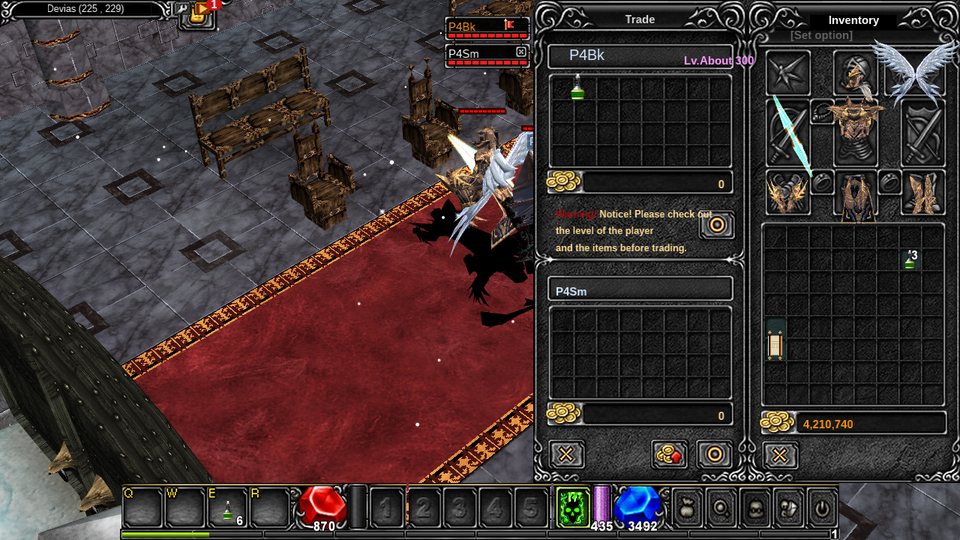
If the other player does not answer within 20 seconds, the request ends and you see a refusal.
A late accept, or one from a player more than 1 tile away, fails. Death, a warp or a respawn cancels the trade and returns the items. Closing the window, pressing Cancel or changing map also ends it cleanly, so the next request is not refused.
The client checks each offered item against the server's bag when the trade ends. A store buy is refused, with nothing paid, if a copy of the item is already in your bag.
Why: a lost box or a partner walking away could leave the player who asked stuck until they logged in again. After a player reported items vanishing during a trade, the client began checking each offered item against the server's bag when the trade ends.
A trade cannot start when:
- your level is below 6,
- the other player has a personal store open,
- the other player is busy in a trade, mix box or vault.
Personal store
Open your store with /personal store or /personalshop. You need level 6.
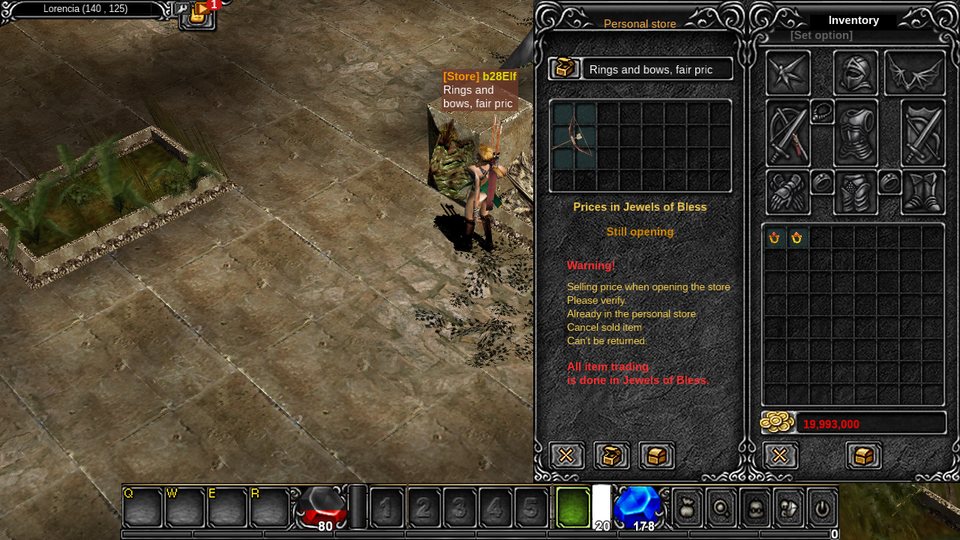
Buyers use /buy <name>. The [Store] name sign shows over your head in two lines on a brown plate.
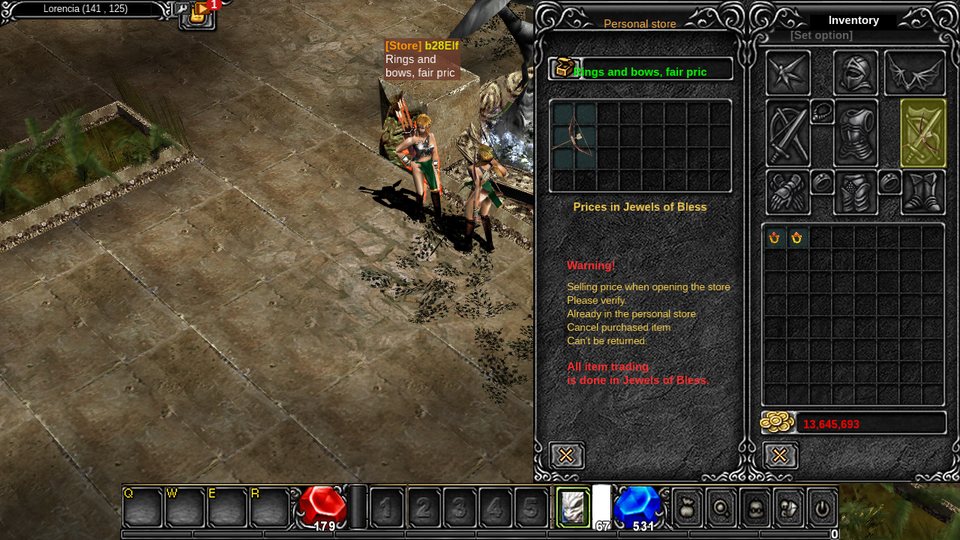
Other rules:
- On maps that use zen, a price under the item's own value asks you to confirm.
- The store closes when you leave its map, for example by warping away. A blue chat line says why.
/view store offhides the store titles over heads./view store onshows them again.- A balloon hides the title while it speaks.
- The price box returns the item to the bag when you press Cancel.
Each map uses 1 price currency for stores:
| Map | Currency |
|---|---|
| Devias and Devias Wasteland | Jewel of Soul |
| Lorencia | Jewel of Bless |
| Noria and every other map | Zen |
The window shows "Prices in ..." under the grid, and a blue line names the currency when you arrive in Lorencia, Devias, Devias Wasteland or Noria.
The jewels go straight from the buyer's bag into the seller's, in the same step as the item, so the seller needs a free bag slot for each one. Stores never take Moo Gold: to sell for Moo Gold, list the item at the Grand Market Clerk in Devias.
See Moo Gold shop and Jewels and upgrades.
Chat channels
The server-wide /post channels have their own article: Global Chat.
| Channel | How to type it | Who sees it |
|---|---|---|
| Normal | Type the text | Players near you, in the log |
| Whisper | Press Tab to move to the ID box and type the name, or right-click a name in the log | The one player |
| Party | Start with ~ |
Your party |
| Guild | Start with @ |
Your guild |
| Alliance | Start with @@ |
Your alliance |
| Balloon | Start with # |
Players near you, shown longer above the head |
| Post | /post <text> |
Every player on the server, from level 10 |
| Post tag | /post #selling <text> |
Every player, in that channel's tab |
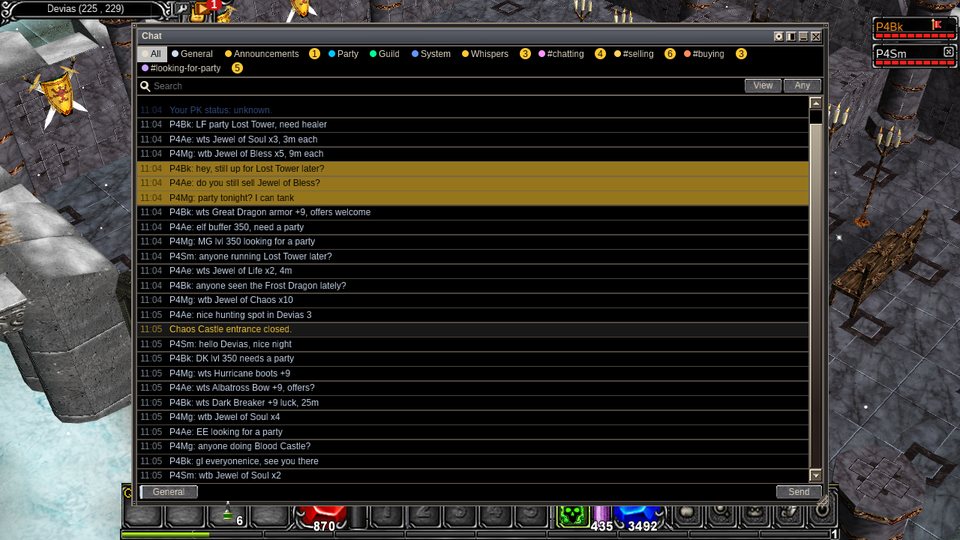
A post can carry a tag: #chatting, #selling, #buying or #looking-for-party. A post with no tag goes to #chatting.
Each tag has its own tab and colour, and the text is drawn in that colour on the usual dark backing so that it stays easy to read. The tags also work in macros. You can search the last 24 hours, for example to see who sold an item.
Global chat opens at level 10. Under that, /post and the Global Chat button do nothing: you see "Global chat opens at level 10." and the Command Window greys the button.
This keeps new characters from being flooded with spam and offers. Only 1 post can be sent every 10 seconds. A post inside the wait is not sent: a System line says "You can post again in N s", and your text stays in the input.
Announcements
A golden line goes to every player when a box gives a rare, excellent or ancient item, or when a golden monster drops an item. Lines queue, 1 every 10 seconds. See Invasions.
Friend chat rooms
Chatting a friend opens a room in its own window. Many rooms can be open at once, and chatting a friend you already talk to brings that window up.
Minimise keeps you in the room, and the X leaves it. Esc never closes a room. The first version allowed one room, so players could not talk to two friends while they played.
The friend window and letters otherwise follow the original look. The letter windows have no 3D character picture, the friend list cannot be resized or sorted by a column, and a new line in a hidden room waits silently.
Phones
Phones have a Chat key on the bar and a full chat. Why: the first phone version had no way to read or send chat at all. The chat, windows and tooltips stay inside the safe area of the screen, away from the notch.
Chat window
Press Y, type /chat, or use the Global Chat button of the Command Window. You can move and resize it.
- The sidebar lists channels (All, General, Announcements, Party, Guild, System), the global channels, whispers and friends. Whispers keep one thread per person.
- Unread badges, a search strip (10 minutes, 1 hour or any time) and a transparency button help with long chats.
- Click a name to whisper, add a friend, mute or invite to a party.
- Threads, mutes and each channel's own history are saved for each character: the last 300 lines of General, Party and Guild, 500 of whispers and System, and 2,000 of Announcements. The # channels keep the last 1,000 lines of 24 hours.
- The System view collects what happens to you:
Obtained N Expper kill, your pickups, kills, PK status and self-defence.
| Key or command | What it does |
|---|---|
| Enter | Opens the chat line and sends it. Esc closes it. |
/filter <word> |
Shows only lines with that word. /filter alone turns the filter off. |
/1 to /0 |
Saves a macro: /1 your text saves into macro 1. Press Alt and a number from 1 to 0 to say it. |
Macros cannot hold trade, party, guild or war commands. A macro says 1 line every 4 seconds, and not in Chaos Castle.
Chat commands
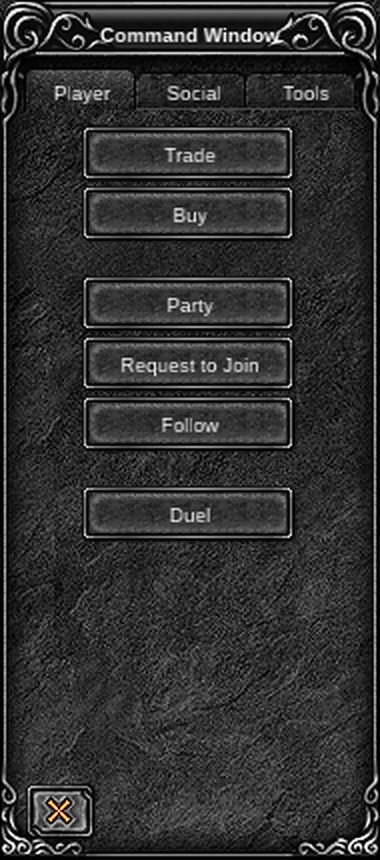
Every command and key, with the levels and prices they need, is listed in Commands and keys. The Command Window, opened with D, runs many of them from buttons.
| Button | Needs |
|---|---|
| Trade | Level 6 |
| Duel | Level 30 |
| Global Chat | Level 10 |
| Buy, Party, Request to Join, Whisper, Add Friend, Follow | Nothing extra |
| Wiki | Opens the Moo Classic wiki |
| Look up | Marks an item, monster or NPC on screen and opens its wiki page |
Pick a button, then right-click a living player within 2 tiles. Follow makes your hero walk after the player and stops when anything else moves you.
The window does not open in Chaos Castle. Moo Classic sorts the buttons into three tabs, Player, Social and Tools, and adds Request to Join, Global Chat, Wiki, Look up and Commands. The original game had one page of buttons; the change puts the common player actions in one place for both keyboard and phone players.
Client commands
The game client reads these and sends the matching action.
| Command | Aliases | What it does |
|---|---|---|
/trade |
/exchange |
Starts a trade with the player you point at |
/party |
/pt |
Invites the player you point at to your party |
/guild |
Asks the player you point at to join your guild | |
/alliance |
/union |
Asks a guild master for an alliance |
/hostilities |
/rival |
Starts hostility with a guild master |
/suspend hostilities |
/rivaloff |
Ends hostility |
/personal store |
/personalshop |
Opens your personal store window |
/buy <name> |
/purchase |
Opens a store by seller name |
/view store on / off |
Shows or hides store titles | |
/warp <map> |
/move |
Warps to a map from the Move window |
/filter <word> |
Shows only chat lines with that word | |
/whisper on / off |
Turns incoming whispers on or off | |
/chat |
Opens the chat window | |
/bug |
Opens the problem report (F12 does the same) |
Server commands
The server answers these.
| Command | What it does |
|---|---|
/war <guild name> |
Asks a guild for a guild war |
/battlesoccer <guild name> |
Asks a guild for a battle soccer match |
/post <text> |
Sends a line to every player. Level 10, and 1 post every 10 seconds. |
/partyrules zen shared / zen picker |
Party leader only. Shares a zen pile equally or leaves it to the picker. |
/partyrules join on / off |
Party leader only. Allows or stops requests to join. |
/partylead <name> |
Party leader only. Hands the lead to an online member. |
/partyjoin <name> |
Asks to join the party of a member, when its leader allows requests |
/add <stat> <n> |
Spends n stat points on one stat. Use str (Strength), agi (Agility), vit (Vitality), ene (Energy) or cmd (Leadership; com also works). The + buttons in the character window do the same. |
/pkclear |
Clears your own PK status. See Clearing PK status. |
/language <code> |
Changes the language of server messages |
/help [command] |
Shows the usage text for a command |
/list |
Lists the commands |
Game master commands are not listed here. Reset commands such as /reset are switched off for players, and the commands that set levels, money or stat points work for game masters only, so levels, stats and resets only change through play.
The original game had none of these commands. /post, /language, /help, /list and /bug are Moo Classic additions to the command set.