 Moo Classic Wiki
Playing on any device
You also set how it looks, sounds and performs to suit your device.
- 1 Rebuilt for touch
- 2 Set it up for your device
- 3 Quick facts
- 4 Moving
- 5 The skill button
- 6 Side slots
- 7 Other buttons
- 7.1 PVE and PVP
- 8 Map, chat and menu
- 9 On a tablet
- 10 Held upright
- 11 The bar
- 12 Zoom
- 13 Items and windows
- 14 Tap inspects
- 15 Battery and heat
- 16 Installing
- 17 Compared with the original
- 18 See also
- 19 Changes in Moo Classic
Rebuilt for touch
The controls are fully rebuilt for your device, not a mouse squeezed onto a small screen. Everything you do on a computer, you do here with a tap, a drag or a hold.
| Control | What it does |
|---|---|
| The stick | Hold a finger on the world and drag a little: a ring and knob appear under it and your hero walks the way you pull. It keeps working with the map open. |
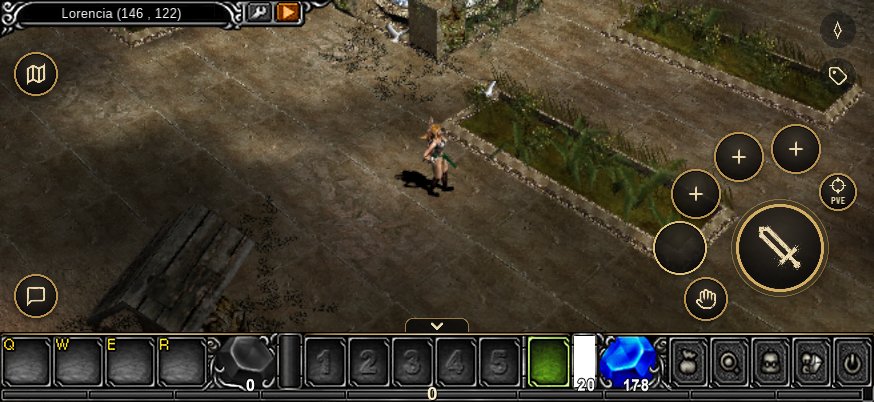
| The big attack button | Casts the skill you picked, and keeps casting while you hold it. Drag from it to aim a skill that fires in a direction or on a spot: a shape on the ground shows where it lands. |
| Quick slots | 3 round slots above the big button, each with its own skill. Tap one to cast it at once, or drag from it to aim. Fill them from the skill list. |
| Attack, Pick and Names | Swing at the nearest monster, pick up the drop beside you, and show the names of items on the ground. |
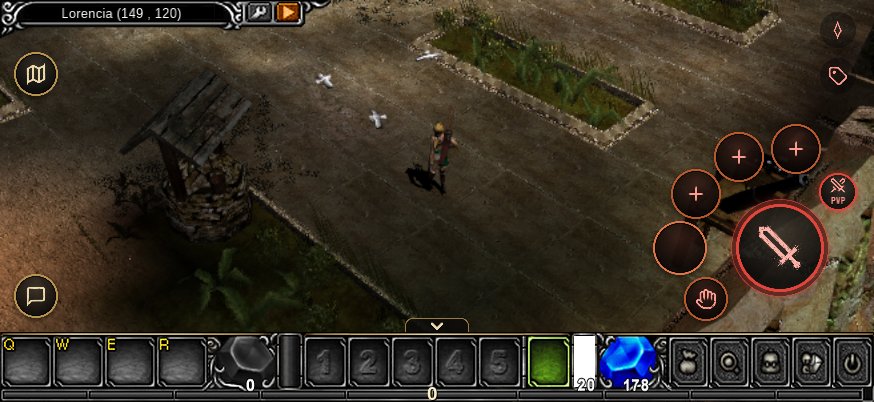
| PVE and PVP | One tap switches what your attacks go after: monsters, or players. |
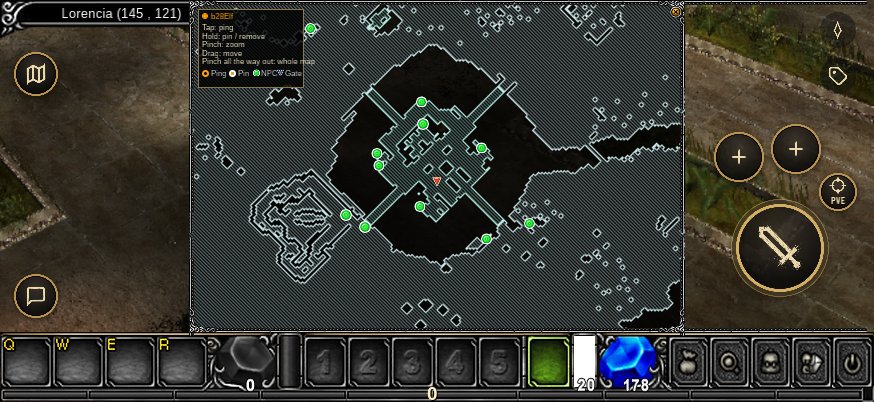
| Pins and the map | The More key's Map item opens the live map. Tap Ping to mark where you stand, or drag it to mark another spot; your party sees it. |
| More room | Swipe the skill bar down out of the way, and pinch the world to zoom. |
| Items | Tap to lift and tap to place. Double-tap to sell, store, use or open, and hold to read. See Items and windows below. |
What you can set: the skills on the quick slots, Tap inspects for shops and your bag, and the look and speed settings below. The buttons themselves stay where they are: moving and resizing them is not in the game.
Every classic window works by finger: the Moo Gold shop, party, friends and letters, guild, the Chaos Machine, quests, the pet window, the Command window and Options. Trade and the personal store work too, and a box that asks for zen or a price brings the keyboard up.
On a computer you play with the mouse and the classic keys, as in the original game: see Commands and keys. Game controllers are not supported on any device.
Set it up for your device
Tap Menu at the top right, then Option. The game keeps what you choose, so you set it up once.
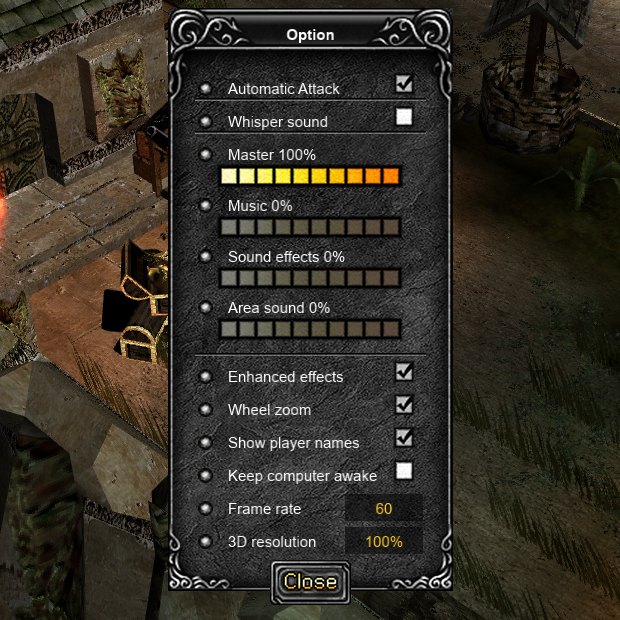
- Looks: Enhanced effects adds northern lights, rain, thunder and sandstorms. It starts off on a phone. 3D resolution sharpens or lightens the world while the buttons and text stay crisp.
- Sound: a volume bar and a music bar. Tick Don't download sound to skip the sound files and save your data.
- Performance: Frame rate 30 or 60. A lower rate and a lower 3D resolution keep a phone cool and the battery going.
- Controls: Tap inspects makes a tap select a monster or item so the buttons act on it.
Every row, and what differs between phones, computers and the browser, is in Options.
Quick facts
| Thing | Value |
|---|---|
| Orientation | Sideways. With Global chat open, a phone turns upright (see Held upright below) |
| Android | App file (APK) download from the website |
| iPhone and iPad | Play in Safari now. The App Store app is in testing. |
| Default frame rate | 30 on a phone, 60 on an iPad |
| Default 3D resolution | 75 % on an iPhone, 50 % on an Android phone, 100 % on an iPad |
Moving
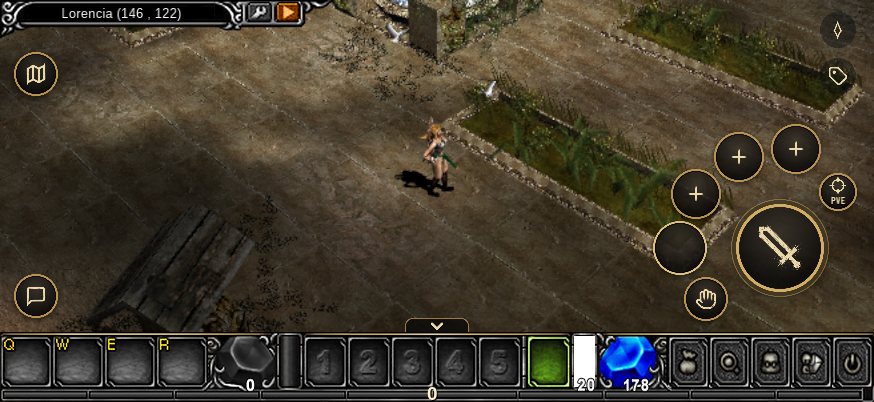
- Tap the ground to walk there. Tap a monster to attack it.
- Hold a finger on the world and drag a little. A ring and a knob appear under the finger, and the hero walks in the direction you pull. Lift the finger to stop.
- The ring and knob keep working while the map is open.
- A tap on a player selects them, and their name shows. Holding a finger on a player opens their menu. Only a trade walks you to them first.
The skill button
The big button on the right works with the skill in the skill box.
- With a skill in the box, the big button casts it and the small button to its left swings the basic attack.
- With no skill in the box, the big button is the basic attack. The small button shows a plus. Tap it to open the skill list and choose a skill.
- The big button shows the picture of the skill. It follows the skill bar: pick another skill on the bar and the button changes with it.
- Hold the button to keep casting. Lifting the finger stops.
- Skills that fire in a direction or on a spot can be aimed. Drag from the button toward where the skill should go. A shape on the ground shows the aim, and lifting the finger casts.
- Dragging back onto the button cancels the aim.
Side slots
3 round slots stand in an arc above the big button. They hold their own skills, apart from the bar. They share keys 6, 7 and 8 with the first 3 slots on the bar's second page. A skill set in one shows in the other.
| Action | Result |
|---|---|
| Tap a slot | Casts its skill. |
| Drag from a slot | Aims the skill, as on the big button. |
| Hold a slot | Opens the skill list. |
To fill a slot:
- Open the skill list from the skill button's plus, or the bar's skill box.
- Drag a skill from the list onto a slot.
- Drag one slot onto another to swap them.
- Drag a slot's skill off to clear it.
A skill can sit on only one slot at a time. Holding a slot opens the skill list. A slot can only be changed while the skill list is open. With the list shut, a tap on a slot just casts its skill.
A Dark Lord's raven commands can stand on the slots too. A tap sends the order.
Holding a finger still on a skill, in the list or on a slot, shows its tooltip.
Other buttons
| Button | Where | What it does |
|---|---|---|
| Attack | Beside the big button | Swings the basic attack at the nearest monster. Its picture is the weapon in your hand. |
| Pick | Left of the big button | Picks up the item lying beside the hero. |
| Target | Upper right, in the column | Switches between PVE and PVP. |
| Ping | In the right-hand column under Menu | A tap marks the ground where the hero stands. A drag marks the spot where you let go. |
| Names | Under Ping | Shows or hides the names of items on the ground. |
PVE and PVP
The Target button reads PVE or PVP. In PVE, attacks go to monsters. In PVP, attacks go to players, and no monster is ever a target. Every button turns red while PVP is on.
Map, chat and menu
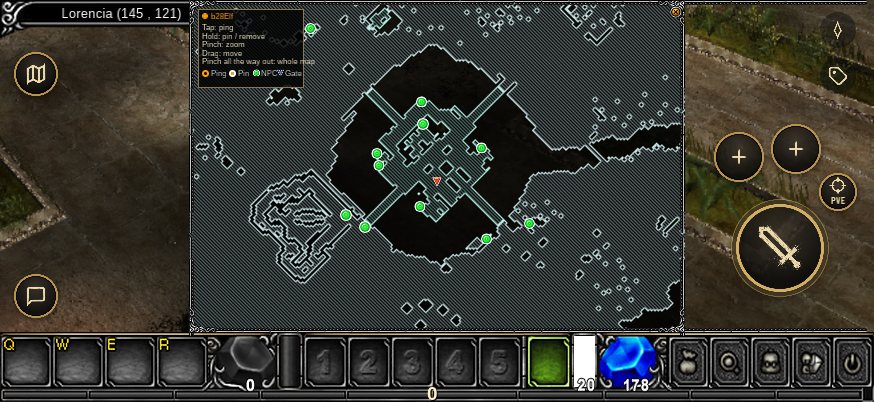
Three round keys sit at the screen edges: Menu, More and Chat.
| Key | Where | What it does |
|---|---|---|
| Menu | Top right | Opens the system menu. The phone's Back button does the same. News is a row there, with its unread count. |
| More | Top left, under the coordinate box | Fans out six keys: Map, Wiki lookup, Command, Party, Trade and Global chat. Tap one to use it, or tap More again to fold them. |
| Chat | Over the potion slots at bottom left | Opens the chat line and the keyboard. Hold it for the channel column, top to bottom: Global chat, Whisper, Guild, Party and Normal. |
| Coordinates | Top left | A tap on the coordinate box opens the Move list. |
On the character select screen the same Menu key stands at the top right, where the grey Back button used to be. Its menu has Back to servers, which takes you to the server list.
On a tablet
| What | How it looks on a tablet |
|---|---|
| The bar | Docked at the bottom edge and as wide as the screen. The small tab on its top edge swipes it down and back up, as on a phone. |
| The More key | The keys drop straight down from it in one column, a finger's gap apart, with their names to the right. A phone's keys swing out in an arc, which a big screen has no room for. |
| News | The unread badge no longer shows through other windows, and the news icon no longer breaks the Helper window's look. |
In the iPhone, iPad and Android apps, a screen with 600 points or more on its short side is a tablet. A phone keeps its own layout.
Options > Display has an iPad layout choice on an iPad (Tablet layout on Android), with three picks:
| Pick | What it is |
|---|---|
| Tablet | The docked tablet layout described above. The default. |
| Phone | The phone's own layout, drawn larger to fill the screen. |
| Desktop | The computer's 640 by 480 layout. A tap clicks, a held finger reads, and a second finger is the right button. |
Held upright
Global chat turns a phone upright while it is open. The game is on top, as it looks sideways, across the full width, and the chat fills the rest below it. Nothing is cut or moved. Closing the chat turns the phone back.
| Phone | What you see |
|---|---|
| Sideways | The game, with the bar, the keys and the windows around it |
| Upright, with Global chat open | The game on top, and the chat below it |
Options > Chat > Global chat picks Upright (the default) or Panel. The chat's own X closes the view.
The bar
The skill bar can be swiped down out of the way and back up. A small tab on its top edge does this.
- The bar has 2 pages. Page one holds keys 1 to 5. Page two holds keys 6 to 0. Swipe the bar sideways to turn the page.
- Drag a skill from the list onto a bar slot to bind it. Drag between slots to swap them.
- Tap a slot to make its skill the current one. The big button follows.
- Tap a potion to drink it.
- With the bar down, 2 potion keys (Q and W) stand beside Chat.
- The bar also shows life, mana and the experience line.
Zoom
Pinch with 2 fingers on the world to zoom the camera out and in. The first time you enter the world on a phone, a short demo shows the pinch. The camera does not turn.
| Gesture | Result |
|---|---|
| Pinch in | Camera comes closer |
| Pinch out | Camera moves back |
| Two fingers turning | Nothing: the camera does not turn |
In the Arena the camera zooms out further, so you can see across the stadium.
Items and windows
A finger works the bag, shops, the vault, a trade and the Chaos Machine the way a mouse does, without dragging.
| Gesture | What it does |
|---|---|
| Tap an item | Lifts it. A second tap on a cell or on the ground puts it there. Tapping the ground drops it on that spot |
| Tap a ware in a shop | Buys one |
| Double-tap an item | Its right-click: sells it at a merchant, puts it in the vault, a trade or the mix, takes it back into the bag, or uses it. A box, heart or other event item drops at your feet and opens |
| Second finger tap | The same right-click on the item under the first finger |
| Hold a finger still on an item | Shows its tooltip, above the finger |
| Hold an item in your personal store | Sets its price again, while the store is closed |
| Drag on a window | Scrolls it |
A computer's Shift + click shortcuts have no gesture here: a tap buys one ware at a time, and dropping an item means tapping it, then the ground. The computer's list is in Commands and keys: Shortcuts.
On the live map: tap to ping, hold a finger still to set your pin (hold on your pin to remove it), pinch to zoom and drag to move. See Live map.
Tap inspects
Options has a row called Tap inspects. It is off by default.
- Off: a tap on an item in a window clicks it. Holding a finger still on the item shows its tooltip. A double tap, or a tap with a second finger while the first holds the item, right-clicks it.
- On: a tap on an item only selects it. 2 pads appear beside the window for its left and right click, such as Buy or Move, and Use, Sell, Store or Take.
Battery and heat
2 rows in Options keep a phone cool. See Options.
| Row | Choices |
|---|---|
| Frame rate | 30, 60 |
| 3D resolution | 50 %, 75 %, 100 % |
The defaults are in Quick facts.
- The phone's screen stays awake while the game is open.
- A lower frame rate draws fewer pictures a second and runs cooler.
- A lower 3D resolution renders the world at fewer pixels and scales it up. Buttons and text stay sharp.
- If the phone gets hot, lower the 3D resolution first, then the frame rate.
Installing
- Android: download the Android app file (APK) from the website and open it. The 64-bit file suits current phones. A 32-bit one exists for old phones. The rest of the game's files download while you play.
- iPhone and iPad: play in Safari now. The App Store app is in testing.
- Browser: the game also runs in a current Chrome, Edge or Safari on a phone or tablet, with the same controls.
Compared with the original
Each change from the mouse and keyboard layout of the original:
| Change | What now happens |
|---|---|
| Touch and steer | A finger is the mouse: a tap walks or attacks, a hold walks, and a second finger right-clicks. Hold and drag a little on the world and a ring and knob appear, and the hero walks the way you pull. |
| Big skill button | The big button casts the skill in the skill box, and its picture follows the bar. The small button swings the basic attack, drawn as your weapon. With no skill chosen, the big button is the basic attack. |
| Side slots | 3 round slots above the big button hold their own skills. They share keys 6, 7 and 8 with the bar's second page. A slot can be changed only while the skill list is open. |
| Drag to aim | Dragging from the skill button or a slot aims a direction or spot skill, and a shape on the ground shows where it lands. Lifting the finger casts. |
| PVE and PVP | The Target button switches attacks between monsters and players. In PvP mode no monster is a target for a swing, a skill or the attack, and every control turns red. |
| Pick, Names and Ping | Pick takes the item beside the hero, Names shows ground item names, and Ping marks the ground. These buttons do what the Space and Alt keys do in the original game. |
| Keys at the edges | Menu sits top right, More top left under the coordinates (its fan holds Map, Wiki lookup, Command, Party, Trade and Global chat), and Chat over the potion slots. News is a row in the Esc menu with its unread count. |
| Player menu | Holding a finger on a player opens a small menu with Trade, Party, Whisper, Guild, Add Friend, Follow and Duel. Only a trade walks you to a player more than 2 tiles away first. |
| Pinch zoom | 2 fingers pinch the camera in and out, and the camera does not turn. |
| Fit to the screen | The bar, the touch buttons and keys reach the screen edges. Windows, tooltips and chat stay inside the safe area of a notched screen. |
Several of these changes work together: the big button and side slots are how skills are cast in a fight, and the Target button decides what every attack hits.
See also
Changes in Moo Classic
The original game had no phone or tablet version, so most rows compare with the keyboard and mouse game.
| Topic | Original | Moo Classic | Why |
|---|---|---|---|
| Touch controls | No touch support. The mouse only. | A finger works as the mouse. A tap walks or attacks. A drag on the ground walks the hero the way you pull. | You can play with one finger, no mouse needed. |
| Skill button | No touch layout. Skills are used from a fixed bar. | A big round button casts the skill in the skill box, and a small one swings the basic attack. Holding the button keeps casting. | Your main skill is one thumb press away, and you can hold it to keep casting. |
| Aiming skills | Skills aim only at the pointer. | Drag from the skill button to aim area and direction skills, with a shape on the ground that shows where they land. | You can place area skills exactly where you want them with a finger. |
| Side skill slots | No such slots. | Three round slots over the big button hold their own skills. A slot changes only while the skill list is open. | Your favourite skills are always at hand, and a stray tap cannot swap them by accident. |
| PVE and PVP | Ctrl held makes a click a player attack. There is no toggle. | A Target button switches attacks between monsters and players. In PVP no monster is a target, and the controls turn red. | You never hit a monster when you meant to attack a player, or the other way round. |
| Pick, Names and Ping buttons | Keyboard only: Space picks up items and Alt shows item names. | Buttons on the phone for picking up, item names and pings. A ping marks a spot for the party. | Picking up items, reading item names and pinging need no keyboard. |
| Skill bar | A fixed bar, used with the number keys. | The bar slides down out of the way. It has two pages, and you swipe sideways between them. | The bar leaves the screen free until you need it, and more skills fit on two pages. |
| Pinch zoom | The camera is fixed. There is no zoom. | Pinch with two fingers to zoom. The first time on a phone, a short demo shows the pinch. | You can zoom in or out to suit the size of your screen. The demo shows how the first time. |
| Tap inspects | No touch support. | Off by default. A tap clicks an item, and a held finger shows its tooltip. When it is on, a tap selects an item first and two pads give its left and right click. | A tap does not open item tooltips by accident. Switch it on if you want to inspect with a tap. |
| Menu, More and Chat keys | No touch support. | Round keys at the screen edges for Menu, More and Chat. More fans out Map, the wiki look-up, Command, Party, Trade and Global chat. News is a row in the Menu, not a key on the screen. | The menu, map and chat are one tap away without a keyboard. |
| Player menu | Commands only in the Command Window and with a right-click. | A tap selects a player, and a hold opens a short menu of commands. Only a trade walks you to a player out of reach first. | You can trade and use other player commands on a phone, where there is no right-click. |
| Phone layout | No phone layout. | Controls reach the screen edges. Windows, tooltips and chat stay clear of the notch. | Nothing is hidden behind the notch or cut off at the screen edge. |
| Sound | Sound came with the install. | Phones and tablets start with the sound bars at zero and no sound files downloaded. Sounds download when needed. | The first download stays small, and sound only downloads if you use it. |
| Frame rate and 3D resolution | About 25 frames a second, with no options. | Options for frame rate and 3D resolution, with a cap on every device. Lower settings keep a phone cooler. | You can trade looks for a cooler phone and a steadier game. |
| Enhanced effects | The sky and weather are fixed. | Off by default on phones and tablets, to save power. It can be turned on in Options. | The phone stays cooler and the battery lasts longer by default. |
| Android app | No phone client. | An app downloaded as an APK from the website, with a 64-bit and a 32-bit file. The rest of the game downloads while you play. | A smaller first download, so you can start playing sooner. |
| iPhone and iPad app | No phone client. | An app for iPhone and iPad, shared through TestFlight. | The game runs on Apple phones and tablets. |
| Browser version | No browser client. | The same game runs in a current browser on phones and tablets, with the same controls. | You can play without installing anything. |
| Button pictures | The original skill card pictures. There are no phone buttons. | Skill pictures redrawn in flat, painted strokes. The phone's buttons use the same style. | The phone's buttons look like they belong in MU. |